

Unlocking Insights: Pivot Tables with Multiple Consolidation Ranges and Power Pivot
- EA FACTION
- Jul 10, 2025
- 3 min read

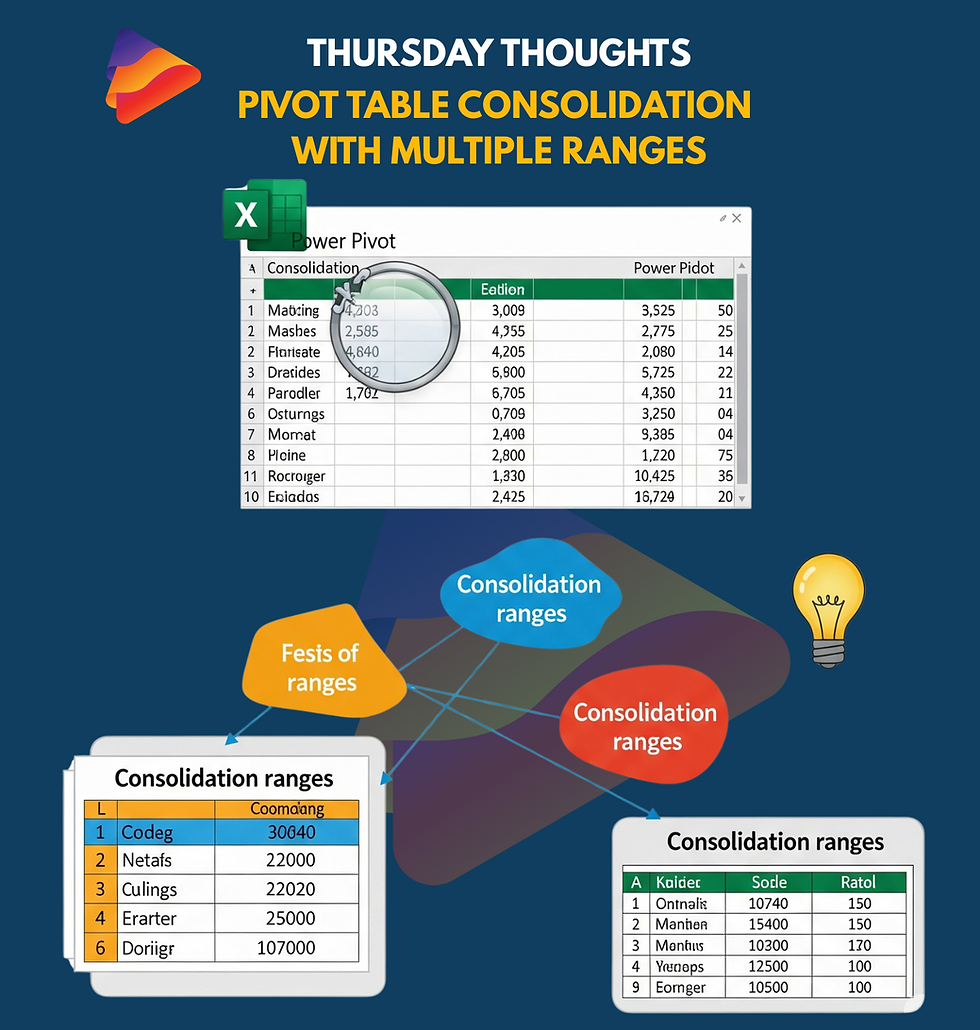
Unlocking Insights: Pivot Tables with Multiple Consolidation Ranges and Power Pivot
Pivot tables are powerful tools for summarizing and analyzing data in Excel. But what if your data isn't neatly organized in a single table? This is where multiple consolidation ranges come in handy. This feature allows you to combine data from several separate ranges (even on different sheets) into a single pivot table for unified analysis. Imagine you have sales data for different regions in separate tables; you can use multiple consolidation ranges to create a single overview of total sales performance.
Creating a Pivot Table with Multiple Consolidation Ranges:
Go to the Insert tab on the Excel ribbon.
Click on PivotTable and then select "Multiple Consolidation Ranges...".
In the "Create PivotTable" dialog box, choose "I will create the page fields". Click Next.
In the "Add the ranges you want to consolidate" step, you can either manually enter the cell ranges or use the Browse... button to select each range. Click Add after selecting each range.
Once all ranges are added, you can either click Next to define page fields (useful for differentiating between the original data sources in your pivot table) or directly choose where to place the pivot table and click Finish.
Excel will then create a pivot table combining the data from your specified ranges. You can then manipulate the fields as you would with a regular pivot table to analyze the consolidated data.
Taking it Further with Power Pivot:
For more complex scenarios involving relationships between different datasets or handling large volumes of data, Power Pivot offers advanced capabilities. Power Pivot is an Excel add-in that provides a data modeling environment.
Using Power Pivot for Similar Analysis:
Instead of using the "Multiple Consolidation Ranges" feature directly in the regular PivotTable wizard, you would:
Import your separate data ranges as tables into the Power Pivot data model. You can do this from the Power Pivot tab by clicking "Manage" and then using the "Get External Data" options.
Create relationships between these tables in the Power Pivot window if they share common fields. This allows for more sophisticated analysis across related datasets, which isn't possible with simple consolidation ranges.
Create a PivotTable from the Power Pivot data model. In the Power Pivot window, click "PivotTable" on the Home tab.
Example:
Let's say you have two tables: "East Region Sales" and "West Region Sales," both containing columns like "Product" and "Revenue."
Multiple Consolidation Ranges: You could use this feature to create a single pivot table showing the total revenue for each product across both regions. You might add a "Region" page field to distinguish where each data point originated.
Power Pivot: You would import both tables into the Power Pivot data model. If you had a separate "Product Details" table with more information about each product, you could establish a relationship between the sales tables and the product details table based on the "Product" column. Then, your pivot table could leverage information from all three tables, allowing for more in-depth analysis, such as revenue by product category across all regions.
In conclusion, while "Multiple Consolidation Ranges" offers a quick way to combine data for basic pivot table analysis, Power Pivot provides a more robust and flexible solution for integrating and analyzing data from multiple sources, especially when dealing with related datasets and larger data volumes. Choose the method that best suits the complexity and scale of your data analysis needs.
Want to know how to use Pivot tables?


Comments