

Leveraging co-pilot & MS OUTLOOK
- EA FACTION
- Dec 23, 2025
- 2 min read

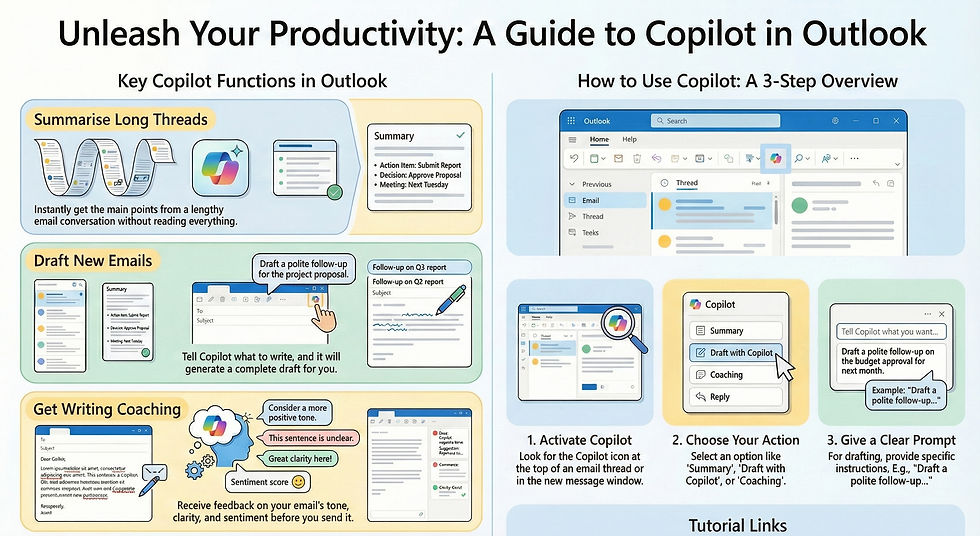
Here is how to get the most out of it:
✉️ 1. Master the "Drafting" Phase
Instead of starting with a blank screen, use Copilot to get 80% of the way there in seconds.
Prompting: Click the Copilot icon (or press /) in a new message. Use specific prompts like: "Draft a polite follow-up to [Person] regarding the project update, mentioning we are waiting on the Q4 data."
Adjusting Tone: Use the Adjust menu to toggle between "Direct," "Professional," or "Casual."
Coaching: Before sending an important email, select Coaching by Copilot. It will review your draft and suggest ways to sound more empathetic or clear to avoid misunderstandings.
🧵 2. Tame Long Email Threads
If you’ve been CC’d on a chain with 20+ messages, don’t read them all.
Summary by Copilot: Click the Summarize button at the top of a thread. It provides a bulleted list of what was discussed, who said what, and—most importantly—what the pending action items are.
Smart Citations: Hover over the numbers in the summary to see exactly which email that specific point came from.
📅 3. Use "Chat-Assisted Scheduling"
One of the best 2025 updates is the ability to talk to Copilot about your time.
Find Openings: In the Copilot Chat pane, type: "Find 30 minutes for me to meet with Sarah next Tuesday." It will scan both your calendars and propose a time.
Meeting Prep: Type: "Prepare me for my 2 PM meeting." Copilot will gather recent emails, related files from OneDrive, and previous meeting notes so you don't have to hunt for them.
Focus Time: You can now prompt: "Block two hours for deep work tomorrow morning," and it will find a gap and create the "Focus" event for you.
📱 4. Mobile Productivity
On the Outlook mobile app (iOS/Android), you can use Voice Triage.
While walking or commuting, tap the Copilot icon and say, "Catch me up on my morning." It will read out summaries of your most important emails and ask if you want to archive them or flag them for later.
🛠️ Quick Setup Checklist
To make sure Copilot is active:
Use New Outlook: Ensure you are using the "New Outlook" for Windows, Mac, or the web version.
Update License: If you don't see the icon, go to File > Account > Update License to refresh your Microsoft 365 permissions.
Privacy Settings: In Account Privacy, ensure "Experiences that analyze your content" is turned ON.
To see these in action with live video walkthroughs, check out these official links:
Microsoft Support: Draft emails with Copilot – A step-by-step guide on the basics.
Microsoft Learn: Use Copilot in Outlook – A library of even more prompt samples for different scenarios.
YouTube: How to use Copilot in Outlook (Official) – A 2-minute visual tutorial showing the interface.


Comments